
Running a Tool
Start a conversation and let the AI help you generate a practical tool.
Create Your First Tool
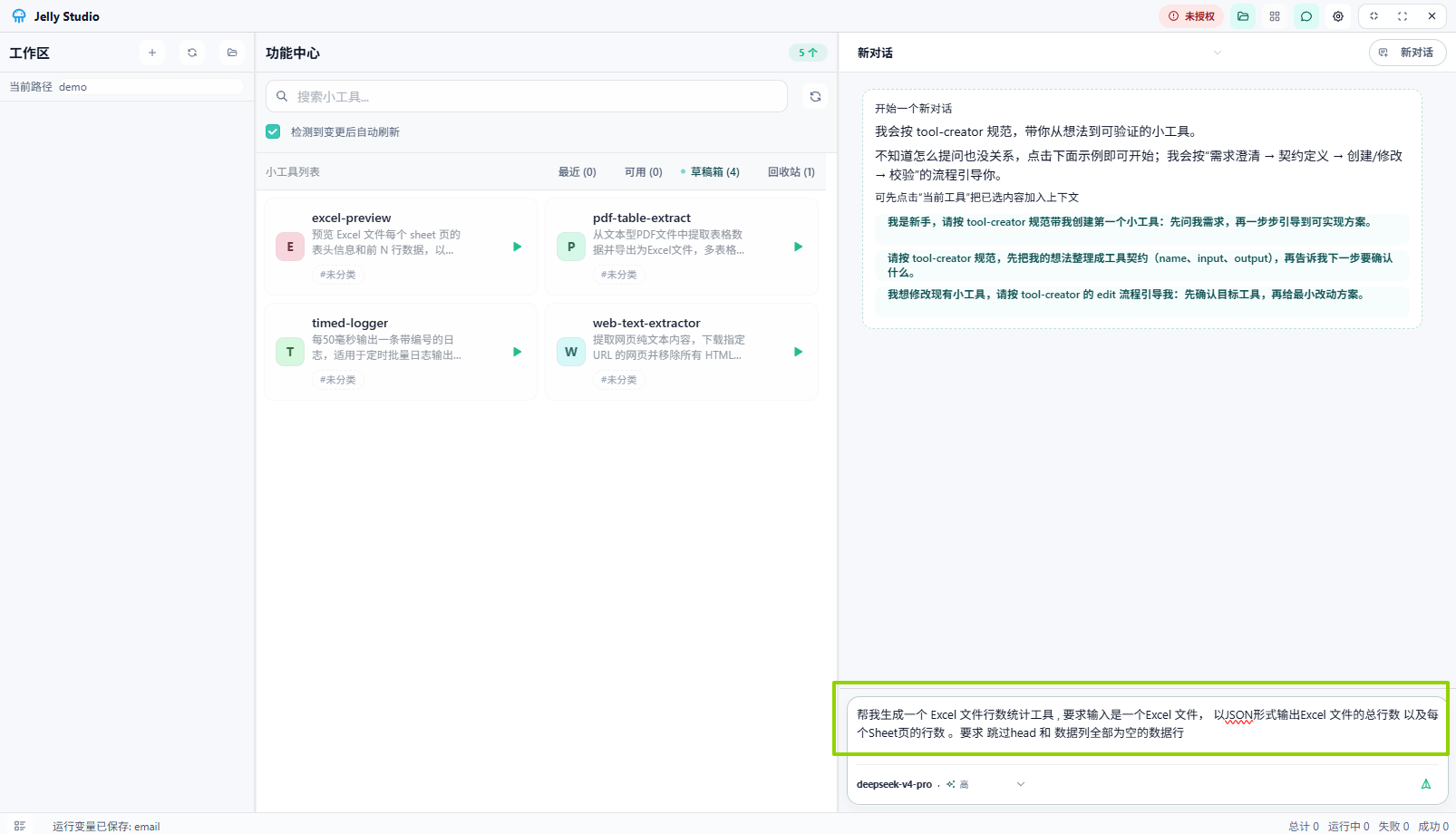 Create a tool
Steps
- Describe your need: type your requirement in the chat box on the right.
txt
Help me generate an Excel row-count tool. The input is an Excel file, and the output is JSON containing the total number of rows in the file and the number of rows in each sheet. Skip the header row and any data rows where all columns are empty.
-
Wait for generation: the AI analyzes your requirement and generates the corresponding tool code.
-
Run the tool:
- Find the tool list in the feature center and double-click the tool you just created.
- Enter parameters on the tool run page and click Run to view the results.
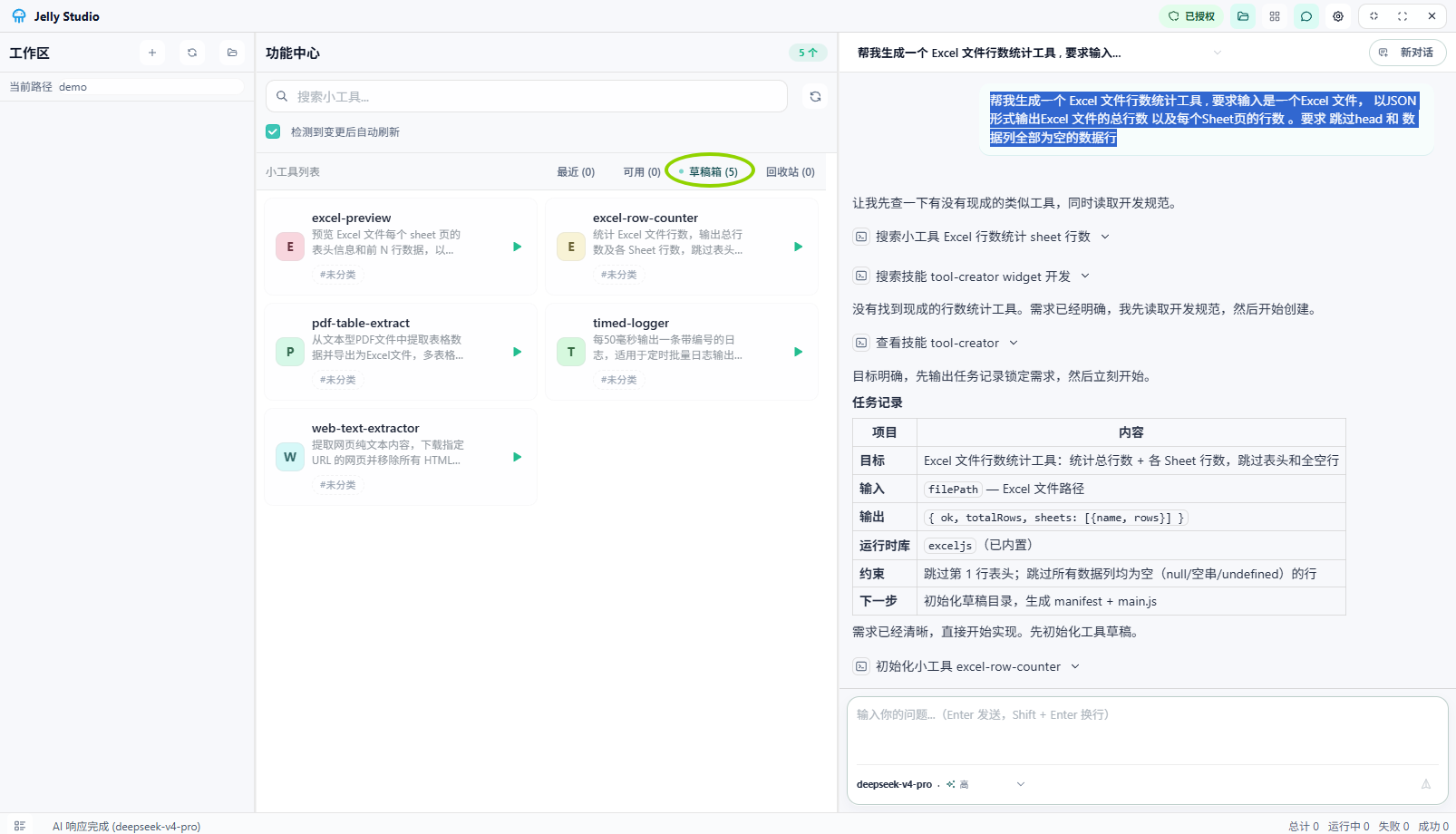 Tool list
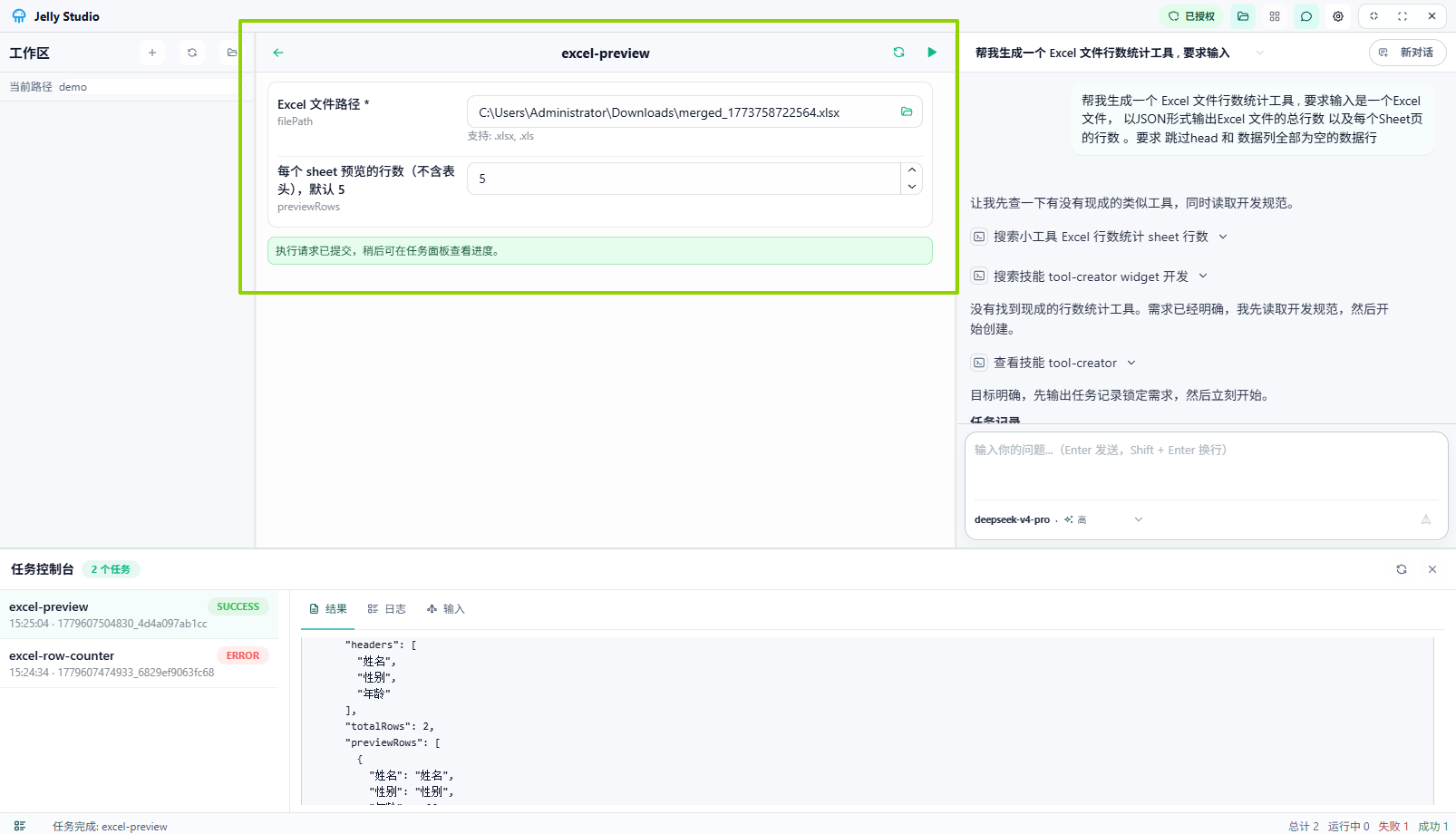 Tool run
Error Handling
If a tool fails during execution, you can handle it as follows.
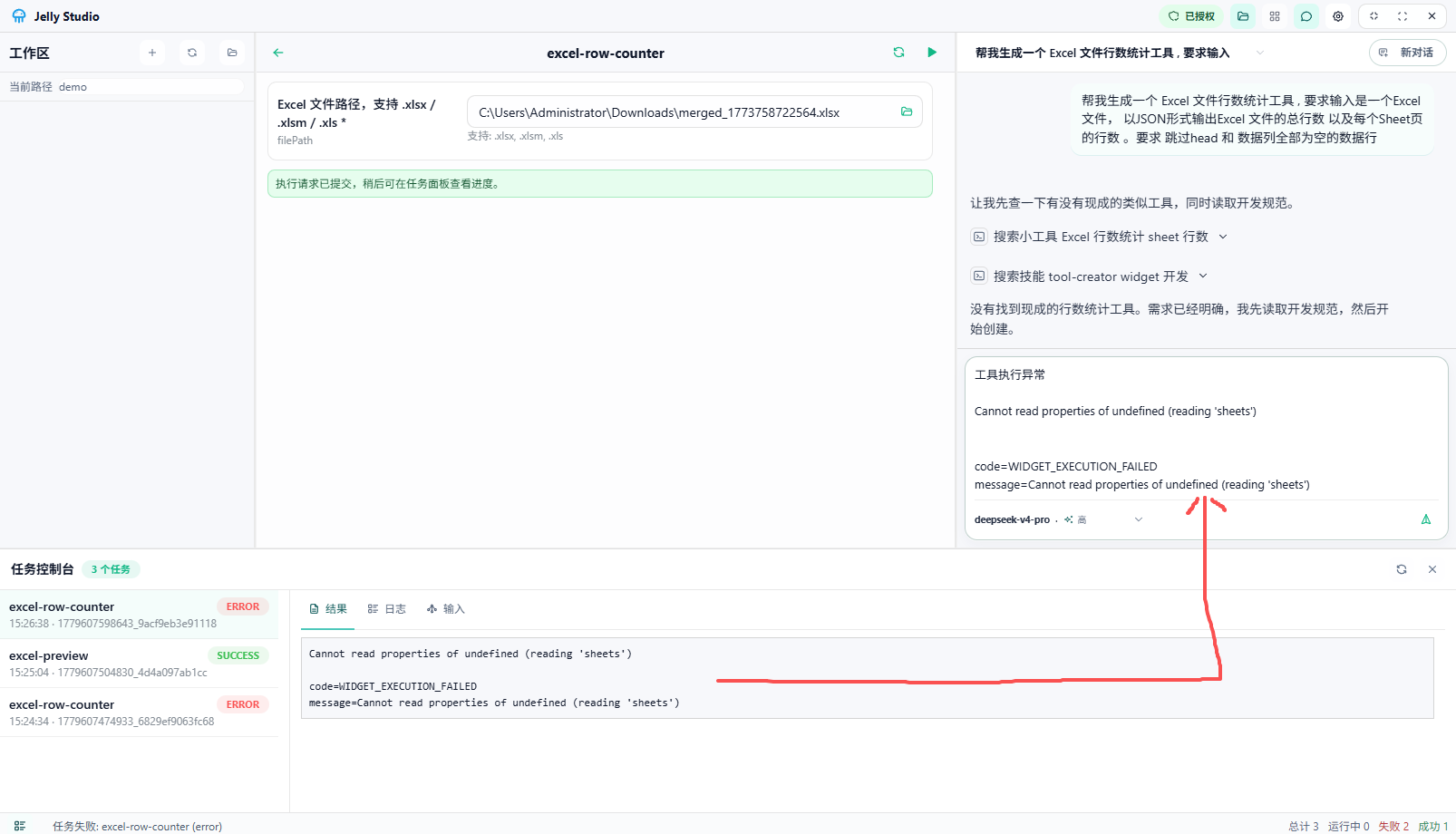 Error handling
Steps
- Copy the error message.
- In the chat box, type:
tool execution error + the error message. - The AI analyzes the error and suggests a fix.
Tip: If you started a new conversation, you can associate a tool in these ways:
- Manually specify the tool name to reference the failing tool.
- Drag the tool into the chat box to link it to the current conversation.